How to Protect Your Shopify Store From Account Takeover in 2026
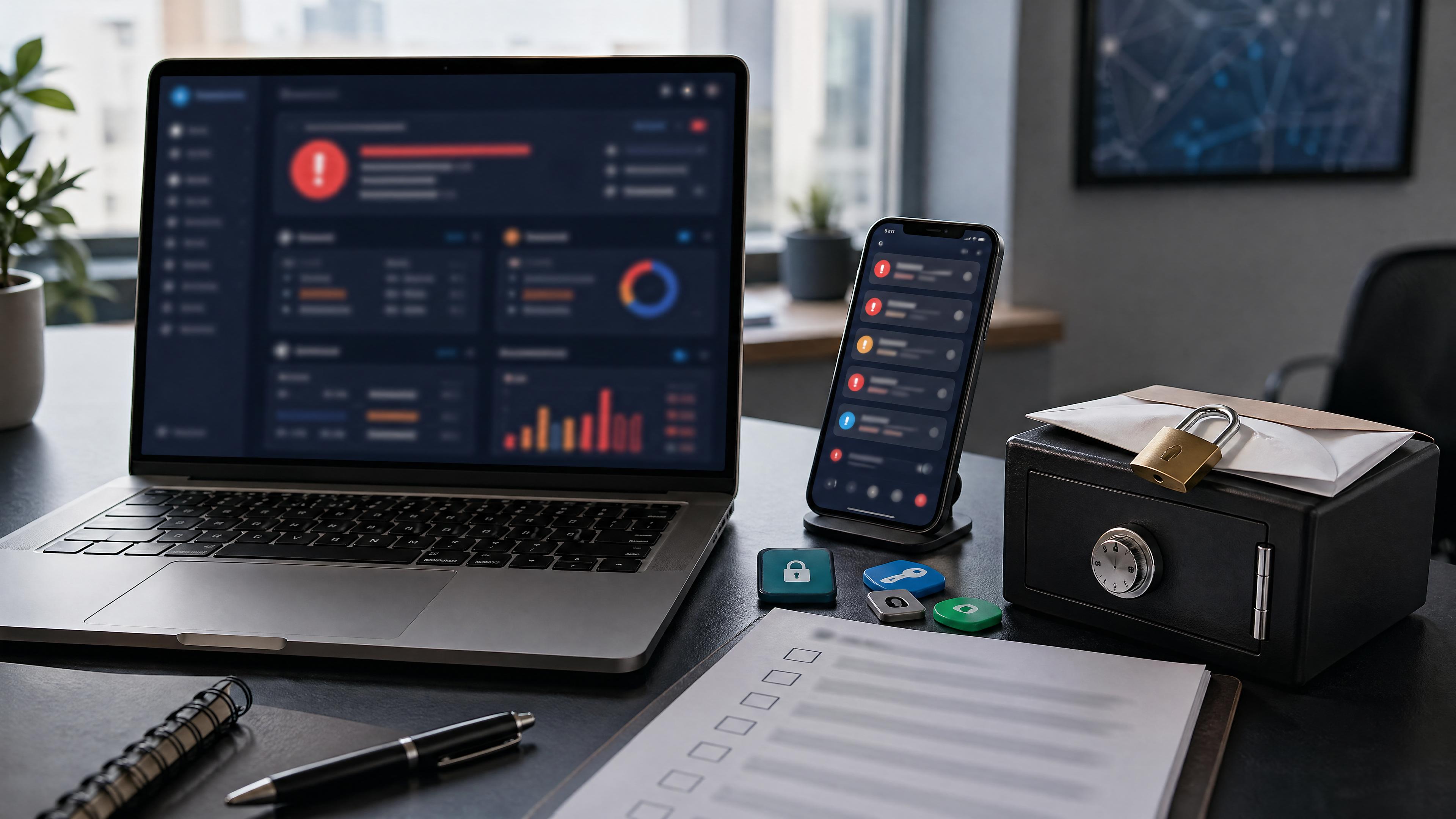
Account takeover can involve stolen credentials, compromised email, phishing, reused sessions, exposed recovery codes, or malicious access through a staff account. A Shopify store needs layered controls and a response plan before an alert appears.
Quick answer: use unique passwords, enable a strong supported multifactor method on every staff account, protect the connected email account, restrict access to what each person needs, store recovery codes securely, and verify unexpected alerts directly in Shopify.
In this guide
Recognize an Account-Takeover Pattern
Email flooding can be used to hide legitimate security alerts during an account compromise. The flood is not proof that Shopify itself has been breached, but it is a reason to check the store, email account, payment activity, staff access, and active sessions through trusted channels.
A defensive review should look for several signals:
- Notification flood: an unusual volume of messages makes important alerts harder to spot.
- Unexpected security event: a login, password reset, recovery-code event, staff change, or app installation you did not initiate.
- Unexpected financial or order activity: new charges, payouts, financing activity, orders, refunds, or settings changes that do not match normal operations.
- Access disruption: a legitimate administrator loses access or sees sessions and users they do not recognize.
If an alert looks suspicious: do not use links in the unexpected message. Open Shopify and your email provider through a saved bookmark or known address, review security activity, and contact official support if you cannot account for the event.
Multifactor authentication remains important, but it does not replace email security, session review, least-privilege access, phishing resistance, or safe recovery-code storage.
How Notification Flooding Can Hide an Incident
Stage 1: Create Noise
An attacker can submit a known email address to many public forms and services, creating a burst of legitimate-looking confirmation and marketing messages:
- Newsletter signup sites (craft fairs, local events, luxury brands)
- Coupon aggregators and deal websites
- Free trial signups (SaaS, apps, services)
- Forum registrations and community alerts
- Abandoned cart recovery services
- Auto-generated confirmation emails and bounces
The exact volume and duration vary. The defensive point is simple: an unexpected burst of email can conceal a message that deserves immediate review.
Stage 2: Bury a Security Alert
Important messages may be harder to see during the flood, including:
- a password or recovery change;
- a login from an unfamiliar device;
- a staff, app, payment, payout, or financing change;
- unexpected orders, refunds, or fulfillment activity.
Mail filters and inbox tabs can add more routing complexity. Use provider security alerts, saved bookmarks, and direct admin review rather than relying on inbox position alone.
Stage 3: Abuse Existing Access
If an attacker has already compromised credentials, a session, email access, or a valid recovery code, the notification flood can buy time. Recovery codes should be treated like credentials: keep them out of email, chat, cloud notes, and ordinary photo libraries, and regenerate them after suspected exposure.
Stage 4: Change the Store or Its Finances
What an attacker can do depends on the compromised account's permissions and the services enabled for the business. Review staff roles, apps, payment and payout settings, orders, refunds, financing surfaces, and recent configuration changes.
Stage 5: Contain and Recover
Containment can interrupt normal operations while the merchant and platform verify ownership and reverse unauthorized changes. Preserve evidence and coordinate through official support channels.
- Record unfamiliar users, sessions, apps, settings, orders, and messages.
- Do not delete evidence before support, counsel, an insurer, or law enforcement has what it needs.
- Separate confirmed facts from assumptions when communicating with customers or staff.
Why 2FA Alone Isn't Enough
Multifactor authentication reduces risk, but no single control covers every path. A valid session may persist, a phishing site may capture a one-time code, a device may be compromised, or a recovery method may be exposed.
Recovery Codes Are Credentials
A valid recovery code can be used when the ordinary authenticator is unavailable. Store codes offline or in an appropriately protected credential vault, limit who can reach them, and regenerate them after suspected exposure.
Protect the Alert Channel
The connected email account deserves its own unique password and strong multifactor authentication. Treat unexpected security mail as a prompt to inspect the account directly, not as a link to follow.
Plan for Other Failure Modes
- Session theft: revoke unfamiliar or unnecessary sessions.
- Phishing: prefer phishing-resistant methods such as FIDO2 security keys where supported.
- Device compromise: keep administrator devices updated and investigate suspicious behavior before entering credentials.
- Excess privilege: give staff and apps only the access required for their work.
7 Account-Security Checks
Verify each control against Shopify's current security documentation and the options shown in your own admin.
Step 1: Use a Strong Supported Multifactor Method
Enable multifactor authentication on every account with store access. A FIDO2 security key is phishing-resistant because it verifies the site origin before authenticating[6]. If a security key is not practical or supported for a user, use a current authenticator method and protect all recovery options.
Step 2: Protect the Connected Email Account
Use a unique password, strong multifactor authentication, reviewed forwarding rules, and a small recovery group. A dedicated administrator address can reduce exposure, but it still needs monitoring and secure recovery controls.
Step 3: Review Available Security Notifications
Enable the security notifications available for the account and make sure a named person monitors them. Verify alerts through a known Shopify address or saved bookmark; never treat an unexpected email link as proof that the message is genuine.
Step 4: Review Active Sessions
Use Shopify's current account-security controls to review sessions and devices. Revoke anything you cannot explain, then inspect passwords, recovery methods, staff users, apps, and the connected email account for related changes.
Step 5: Separate and Monitor Security Mail
Use carefully tested mail rules or provider features to make expected security messages easier to review. Do not automatically trust a sender label, and avoid rules that hide messages from normal monitoring.
Step 6: Review Staff and App Access
Remove access that is no longer needed and review the permissions retained by each staff member and app. Before uninstalling a business-critical integration, confirm ownership, data-retention, billing, and operational consequences.
Step 7: Review Financial and Order Controls
Document who may change payment, payout, financing, refund, fulfillment, and order-risk settings. Review the controls available for the store's plan and region, and require a second person to verify high-impact changes when the business can support that process.
What to Do If You've Been Compromised: Step-by-Step Recovery
If you see suspicious activity, use a known device and trusted channel to start containment. The exact order may change if Shopify, counsel, law enforcement, an insurer, or an incident-response professional gives case-specific instructions.
Contain Access
- Contact official Shopify Support. Use Shopify's current help surface and state that you suspect unauthorized account access.
- Secure the connected email and administrator credentials. Use a trusted device, change exposed credentials, and review recovery methods and forwarding rules.
- Review and revoke unfamiliar sessions. Follow Shopify's current security documentation[5].
- Replace exposed recovery codes. Store the new codes outside ordinary email, chat, notes, and photo storage.
- Review staff and apps. Remove unexplained access without destroying evidence needed for the investigation.
Preserve Evidence and Report Fraud
- Report unauthorized financial activity. Contact the relevant platform, bank, card issuer, or financing provider through its official fraud channel.
- File an IC3 complaint with the FBI. Go to ic3.gov[2]. File a complaint for account takeover and fraud. Include order numbers, dates, and dollar amounts. You'll get a case number — you'll need it for insurance and any legal process that follows.
- Document everything. Screenshots of all fraudulent orders, stolen funds, login history, Shopify's responses. Save it all to a folder somewhere safe. This is your evidence for insurance claims and potential legal action.
Review Connected Accounts and Notifications
- Check known breach exposure. Have I Been Pwned can show whether an address appears in a known breach dataset[3]; it does not prove how a current incident began.
- Change passwords on every account linked to your email. Gmail, PayPal, your bank, other email accounts. If your email is accessible, attackers can use password reset flows to take over everything downstream.
- Enable a hardware security key on your email account too. Google Account Security → 2-step verification → Add security key. This protects the inbox that protects everything else.
- Assess notification duties. If personal data may have been exposed, preserve the facts and obtain qualified privacy or legal guidance before deciding what notices are required.
Continue Monitoring
- Monitor your account. Check active sessions, review orders, look at email forwarding rules. Watch for anything that shouldn't be there.
- Monitor relevant credit records. U.S. consumers can use AnnualCreditReport.com[4]; business and non-U.S. monitoring options differ.
- Follow up on open cases. Keep case identifiers, requested evidence, decisions, and next-review dates in the incident record.
Insurance varies: Review the actual cyber, crime, or fraud policy and contact the insurer through its official claims channel. Coverage, exclusions, notice deadlines, deductibles, and evidence requirements depend on the policy.
Platform and Process Controls to Review
Merchants cannot control every platform safeguard, but they can document which high-impact actions need extra review and provide concrete feedback through official support channels.
Recovery and Authentication Events
Review who can generate or use recovery methods, where those credentials are stored, which alerts are available, and how the team verifies a recovery event. Do not assume an authenticator protects a separately exposed recovery credential.
High-Impact Financial Changes
Where the platform and business process allow it, high-impact changes should receive stronger verification. Useful controls can include:
- Password re-entry
- fresh multifactor verification;
- role restrictions and a second-person review;
- out-of-band notification to a monitored contact.
Multiple Alert Surfaces
A merchant should review the security events available in the admin and the notification channels supported for the account. Useful platform safeguards may include:
- in-admin security history;
- verified email, push, or other out-of-band alerts;
- exportable logs for incident review.
Capabilities change. Verify the controls currently documented by Shopify and visible for the store instead of relying on screenshots or menu paths from an older guide.
Frequently Asked Questions
Verify the current security controls
Use Shopify's current security and two-step-authentication documentation, then compare it with the settings and permissions visible in your own account.
Review the security sources →Disclaimer: This article provides general security information, not a claim about the scale or status of a specific incident and not professional security, legal, insurance, or incident-response advice. Platform controls change. Verify current Shopify documentation and use qualified professionals for a suspected compromise.